The Ankr Forge Wallet
If you signed in to Ankr Forge with a Google, X, or Discord account, Forge created a wallet for you. It is called your Ankr Account, it holds $ANKR, and you control it with a passkey on your device plus a backup key file you download once.
This page covers where that wallet lives in the interface, how to move ANKR into it, and how to move ANKR out.
When a Forge Wallet is created
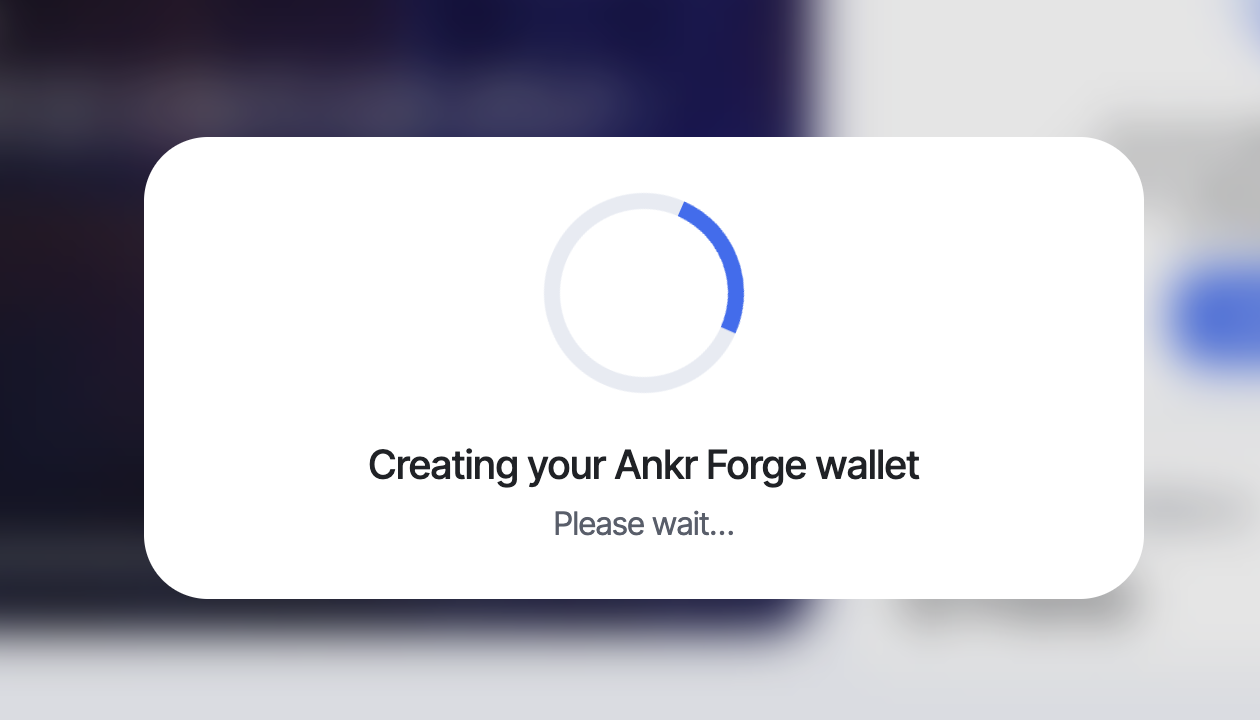
Forge creates an Ankr Forge Wallet automatically the first time you sign in with any method other than an existing wallet. Sign in with Google, X, or Discord and you'll see a Creating your Ankr Forge wallet screen, followed by Ankr Forge wallet created.
If you connect an EOA wallet instead, such as MetaMask, Coinbase, WalletConnect, or TrustWallet, no Forge Wallet is created. That external wallet already backs your Forge account, and you keep custody of it as you always have.
Forge distinguishes two balances of the same token, and never adds them together:
- In your wallet — ANKR in the external wallet you linked. Forge only reads this balance; it cannot move it.
- Ankr Account (Deposited to Forge) — ANKR held in your Forge Wallet. This is the balance Deposit and Withdraw act on.
Save your backup key
During wallet creation, Forge shows Save your backup key. This screen is the only time you can download the key.
Your passkey is tied to the device you signed in on. The backup key is the spare way in if that device is lost, wiped, or replaced, including the way to withdraw your funds when the passkey is gone.
- Select Download backup key. The file is generated in your browser and saved to your device. Download again re-saves it while this screen is open.
- Move it somewhere safe and separate from your passkey, a password manager or an encrypted drive, not the same laptop you sign in from.
- Tick the acknowledgement, then select Continue to finish creating the wallet.
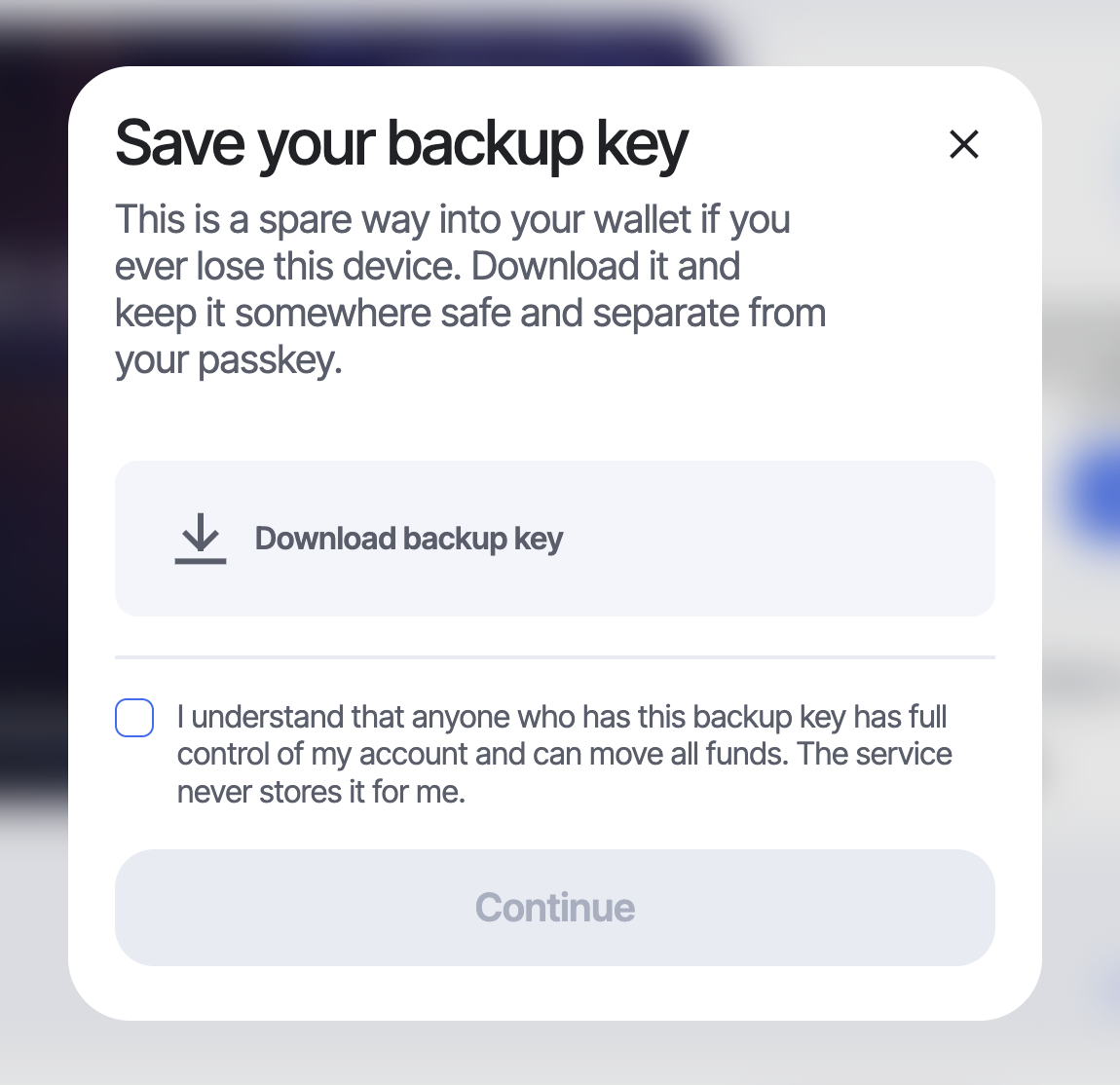
Forge generates the backup key in your browser and hands it to this screen. Once you select Continue, the app no longer holds it, and there is no way to download it again, reissue it, or generate a replacement, not from your account settings, and not by contacting support. Ankr never holds or stores a copy for you.
Your wallet is only created once you pass this screen, so if you have a Forge Wallet you did download the file at least once. Closing the screen without downloading abandons the wallet instead of creating one without a backup key; the next sign-in starts over with a new key.
If you can no longer find your file, treat it as lost and read Restore access below.
Anyone who has your backup key file has full control of your account and can move all funds. Ankr never stores a copy for you, so it can neither leak it nor restore it. Never upload it, email it, screenshot it, or paste it into a support chat. No genuine Ankr request will ever ask for it.
If you lose every device and the backup key, access cannot be restored automatically. Contact support; that limit is deliberate, and it is what keeps someone else from claiming your wallet.
Lost the file but your passkey still works? You are not locked out yet, and nothing can restore the file. Withdraw your ANKR to a wallet you control while that passkey still answers, rather than leaving a balance behind a single device.
Open your Ankr Account
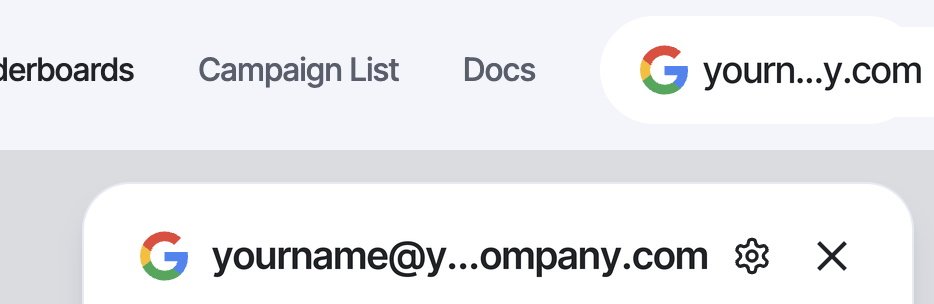
Select your account chip in the top navigation, then the gear icon next to your account name. This opens Your ANKR Account.
Under ANKR Balances you'll find each balance with its approximate USD value, and, on the Ankr Account row, the Deposit and Withdraw buttons.
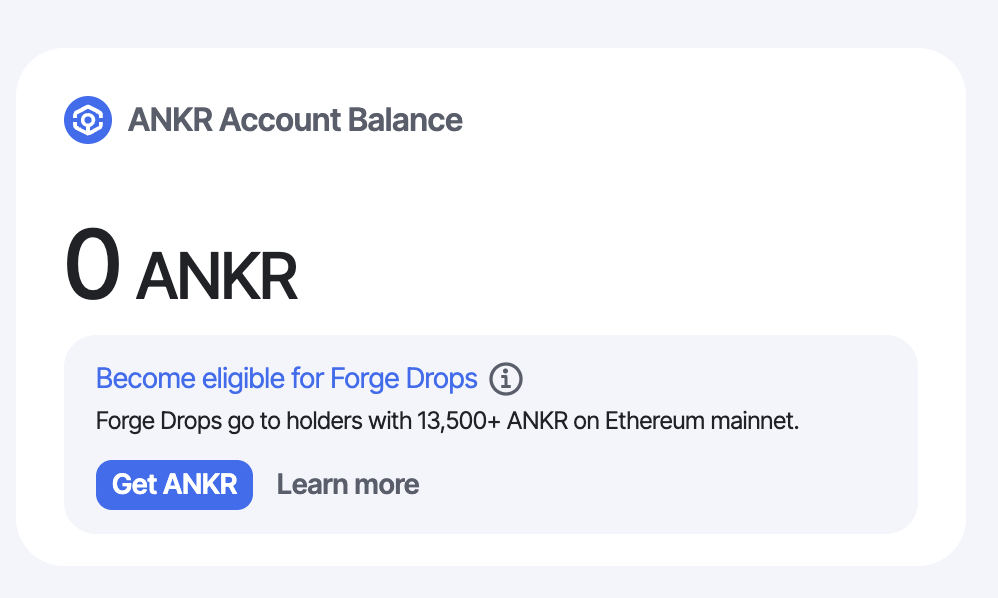
Your dashboard also carries a balance card. It shows your highest ANKR balance and titles itself ANKR Account Balance when that balance is your Forge Wallet, alongside whether you hold enough ANKR to be eligible for Forge Drops.
Deposit ANKR
Depositing means sending ANKR from any wallet or exchange to your Forge Wallet's own address.
- In Your ANKR Account, select Deposit on the Ankr Account row.
- Check the Network shown on the screen. Forge holds ANKR on a single network, and the modal always names it.
- Copy your Deposit Address with Copy Address, or scan the QR code with a mobile wallet.
- Send ANKR from the sending wallet. The sending wallet pays the network fee.
- Tokens arrive after roughly two network confirmations, and your Ankr Account balance updates on its own.
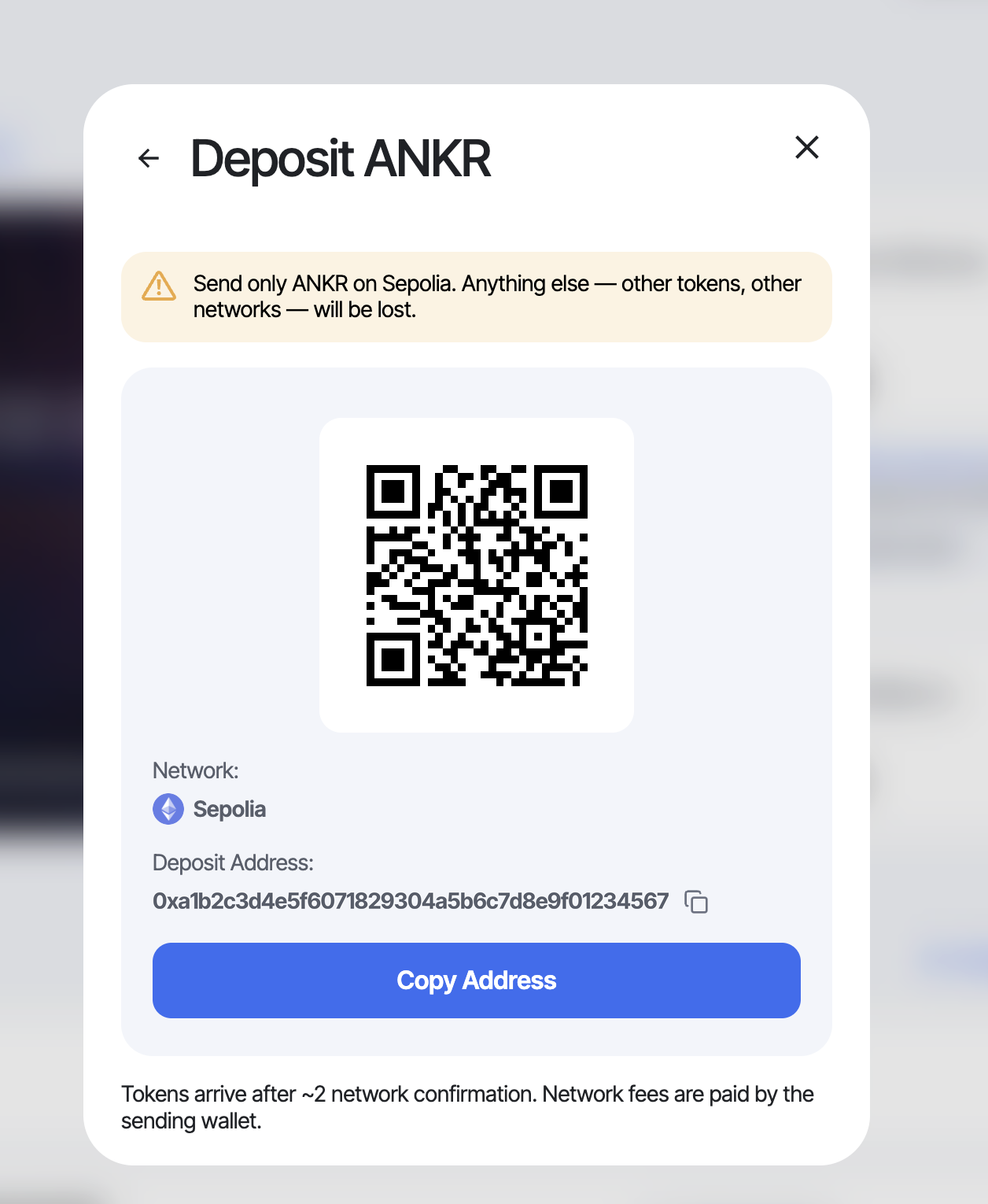
This address supports one token on one network, ANKR today, on the network the screen names. Send anything else and Forge has no built-in way to show it, move it, or send it back: unsupported tokens are not something the app can manage for you, so a wrong-token or wrong-network transfer is a problem you may not be able to undo.
Exchange withdrawals are the usual trap here: confirm the exchange is sending ANKR on the same network the deposit screen names before you confirm the transfer.
The deposit address is yours and does not rotate, so you can save it and reuse it for later deposits.
Withdraw ANKR
Withdrawing sends ANKR from your Ankr Account to any address you choose. It runs in three steps.
Step 1 — Amount and destination
Select Withdraw on the Ankr Account row, then:
- Enter the Amount, or select MAX to withdraw the full balance. The field shows the approximate USD value and your available balance beneath it.
- Paste the destination in To Address. The network is fixed and labeled under the field, and the destination must be an address on that same network.
- Check the Network fee line. It reads Free when Ankr sponsors the transaction, which is the normal case. If sponsorship is not active it reads Paid in ETH from your Ankr Account, and the fee comes out of that account's ETH balance.
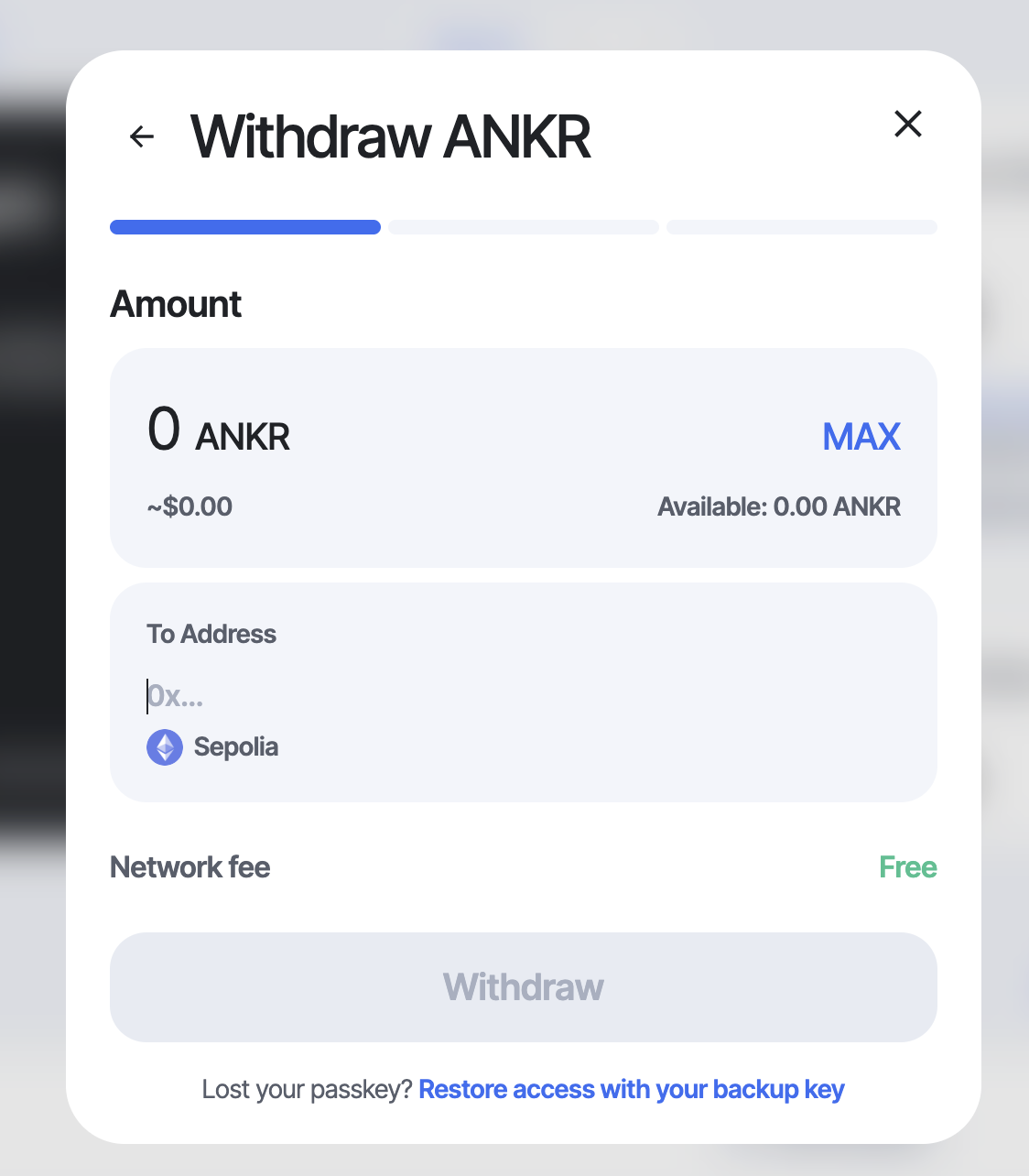
Forge blocks a withdrawal that can't succeed and tells you why: Enter a valid amount, More than your available balance, Not a valid address, or a decimal-places limit. If your balance hasn't loaded, withdrawal is paused until it does rather than guessing at the number.
Step 2 — Confirm
Review the withdraw address and your balance after the withdrawal, then select Confirm and approve with your passkey.
Once submitted, a withdrawal can't be recalled or refunded by you or by Ankr. Check the address and the network on this screen before confirming. Select Go Back to change either one.
Step 3 — Result
Confirming submits the transaction. Keep the window open; it usually settles in under a minute.
| What you see | What it means | What to do |
|---|---|---|
| sending | Submitted, waiting on the network | Keep the window open |
| sent | Complete | Select View transaction for the on-chain record |
| Withdrawal didn't go through | Nothing was sent; your ANKR is still in your Ankr Account | Select Try Again |
| Still confirming | Submitted, but not yet confirmed. It may still complete | Do not send it again. Your balance updates automatically once it settles either way |
If sponsorship dropped out mid-transaction, the success screen says so and notes that the network fee was paid in ETH from your Ankr Account.
Lost your passkey? Restore access with your backup key
Both pre-confirmation steps of the withdraw flow carry a Lost your passkey? Restore access with your backup key link. Withdrawing is the action that needs your passkey, so that is where the recovery path lives.
- Select the backup key file you downloaded when your Ankr Account was created. It is read locally and never uploaded.
- Create a passkey on this device. It becomes this device's way in from then on.
- Wait for Restoring access… to finish. This device is ready means you can use your Ankr Account here again.
You can run this on any device you trust, and your backup key keeps working afterwards, since restoring does not consume it. A few things worth knowing:
- If the file doesn't match, Forge says so plainly: This isn't a backup key file, or This file doesn't match your Ankr Account's backup key.
- If a passkey for the account already exists on the responding device or phone, Forge declines to create a second one and points you at the existing passkey. That is expected, not an error.
- Restoring access is an on-chain operation. If it isn't sponsored, Forge asks you to top up your Ankr Account's ETH balance first.
Frequently asked questions
Do I get a wallet automatically on Ankr Forge?
Yes, if you sign in with a Google, X, or Discord account. Forge creates an Ankr Forge Wallet for you during sign-in. If you instead connect an existing EOA wallet such as MetaMask, Coinbase, WalletConnect, or TrustWallet, no Forge Wallet is created and that external wallet backs your Forge account.
What is the difference between "In your wallet" and "Ankr Account"?
"In your wallet" is the ANKR balance of the external wallet you linked, which Forge only reads. "Ankr Account", labeled "Deposited to Forge", is the ANKR held inside your Forge Wallet, and it is the balance Deposit and Withdraw act on. Forge never adds the two together.
Why do I need to download a backup key?
Your passkey only works on the device you created it on. The backup key is the spare way into your Ankr Account if that device is lost or replaced, and it is how you withdraw your funds without the passkey. You can only download it on the screen shown while your wallet is created, and it cannot be downloaded again or reissued afterwards. Ankr never stores a copy, so anyone holding the file has full control of the account, and losing both every device and the file means access cannot be restored automatically.
Can I download my backup key again later?
No. The backup key can only be downloaded on the screen shown while your wallet is created, and "Download again" there works only while that screen is open. After you select Continue, the app no longer holds the key, and it cannot be downloaded again, reissued, or replaced from your account settings or by support, because Ankr never stores a copy. If you cannot find your file and your passkey still works, withdraw your ANKR to a wallet you control.
How do I deposit ANKR into my Ankr Forge Wallet?
Open your account chip in the top navigation, select the gear icon, then select Deposit on the Ankr Account row. Copy the deposit address or scan the QR code, and send ANKR on the network the screen names. The sending wallet pays the network fee, and tokens arrive after about two network confirmations.
What happens if I send the wrong token or use the wrong network?
Forge supports only ANKR, and only on the network named on the deposit screen. A different token, or ANKR on another network, still exists on-chain, but Forge has no built-in way to display, manage, or return it, so the app cannot get it back for you. Always check the network named on the deposit screen against what your sending wallet or exchange is about to send.
Does withdrawing from Forge cost a network fee?
Usually not. The withdraw screen shows the network fee as "Free" when Ankr sponsors the transaction, which is the normal case. If sponsorship is not active, the screen says the fee is paid in ETH from your Ankr Account instead.
Can I cancel a withdrawal?
No. A submitted withdrawal cannot be reversed or refunded by you or by Ankr, so check the address and network on the confirmation step first. If the result screen says "Still confirming", the transaction was submitted but not yet confirmed, so do not send it again; your balance updates automatically once it settles.
I lost the device with my passkey. How do I get my ANKR out?
Start a withdrawal and select "Lost your passkey? Restore access with your backup key". Select the backup key file you downloaded, create a passkey on the device you're using now, and wait for the restore to finish. The file is read locally and never uploaded, and it still works after the restore.